Scheduling SQL Queries in SaturnSQL
Last updated May 19, 2026 · By the SaturnSQL team
Scheduled queries let SaturnSQL run a saved SQL query for you on a cadence (hourly, daily, weekly, or a custom cron schedule) and deliver the results to a destination of your choice. This guide walks through setting one up and shows the common things that trip teams up.
If you are coming from SeekWell or PopSQL, the model is similar: schedule a saved query, pick a destination, monitor runs.
Before you start
- You need a saved query. Only saved queries can be scheduled, so write and save the SQL first.
- If you plan to deliver to Google Sheets, have the target spreadsheet ready and know which Google account owns it.
- Scheduling is a paid-plan feature. The free plan is for ad-hoc work. Check the pricing page for current limits.
Step 1: Save your query
Open the SaturnSQL editor, write or paste the SQL you want to run on a cadence, and save it with a name that will make sense to your future self. A good convention is something like daily-active-users or weekly-revenue-by-region. Run the query once interactively so you know it works before you put it on a schedule.
Step 2: Open the schedule panel
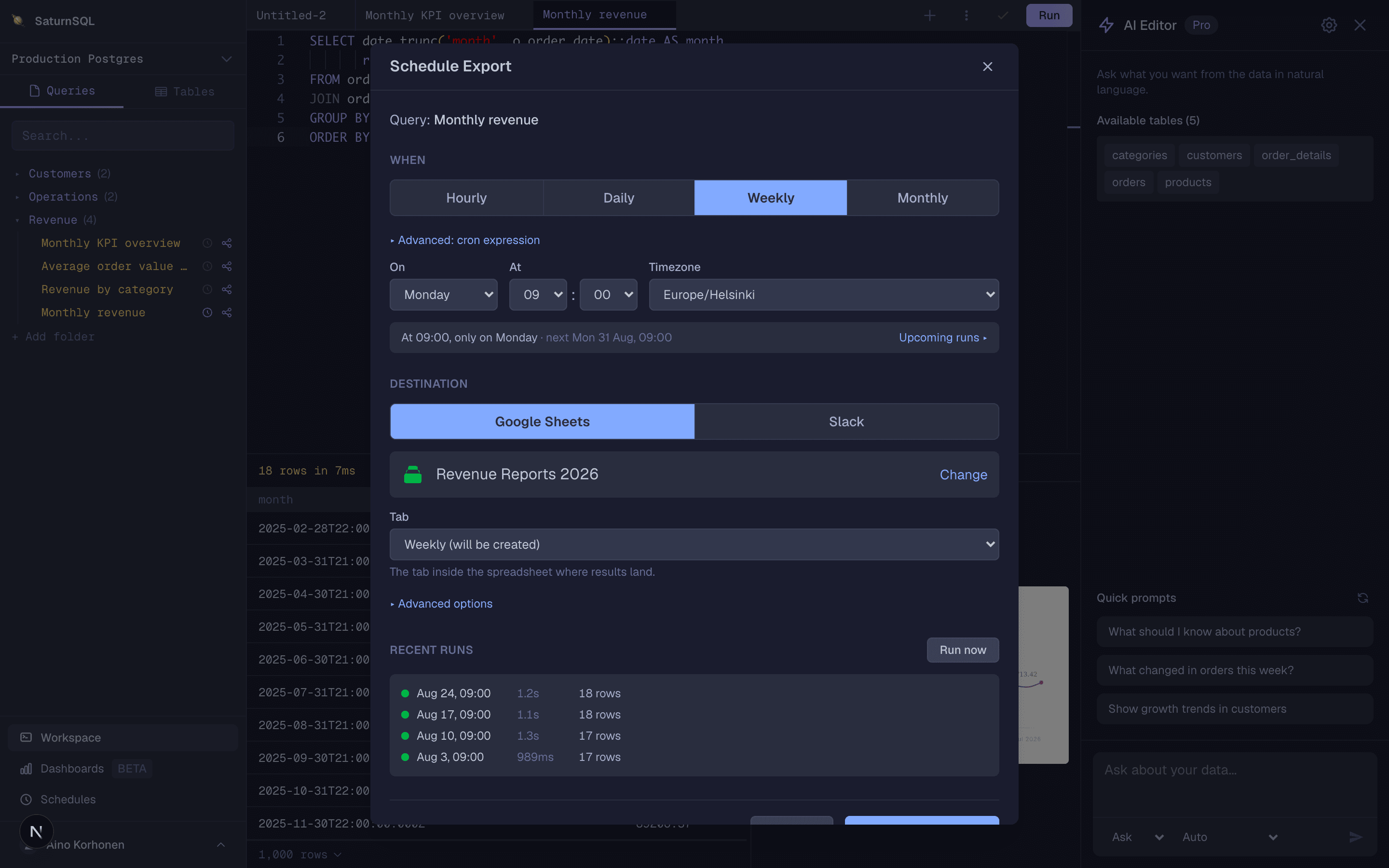
From the saved query, open the schedule panel. You will see options to set the cadence, the destination, and notification preferences. Each saved query can have its own independent schedule.
Step 3: Pick a cadence
SaturnSQL supports the cadences most teams need:
- Hourly — runs every hour at a minute you choose. Good for near-real-time dashboards.
- Daily — pick the time. Common pattern: 07:00 so reports are ready before standup.
- Weekly — pick a day and time. Common for Monday morning leadership reports.
- Monthly — pick a day of the month, or "Last day of month" so month-end reports land correctly in February as well as in 31-day months.
- Advanced — any standard 5-field cron expression, down to a 5 minute interval. For example
*/15 6-18 * * 1-5runs every 15 minutes from 06:00 to 18:59, Monday to Friday, so nothing refreshes overnight or at the weekend. Seconds are not supported.
Tip: Always set the timezone explicitly. If half your team is in CET and the other half in EST, the wrong default timezone is the single most common reason a schedule appears to be running "at the wrong time."
Step 4: Choose a destination
Pick where the results should go when the schedule runs:
- Google Sheets — the most common destination. Connect a Google account, pick the spreadsheet and tab, and each run replaces the rows the previous run wrote. See the Google Sheets export guide for details.
- CSV download — SaturnSQL stores the latest run as a downloadable CSV. Good for queries you only need to grab occasionally.
- Email — the results land in a recipient’s inbox. Good for small summary tables you want a stakeholder to see without logging in.
- Slack — the results post to a channel as a formatted message, either the full table or a custom template. See the Slack delivery guide for details.
Step 5: Test the schedule
Before walking away, trigger the schedule once manually. Confirm the query ran successfully and the data landed where you expected (the right sheet, the right tab, the right inbox). Then enable the schedule so it runs on the chosen cadence.
Best practices
- Use relative dates in SQL — write the WHERE clause as
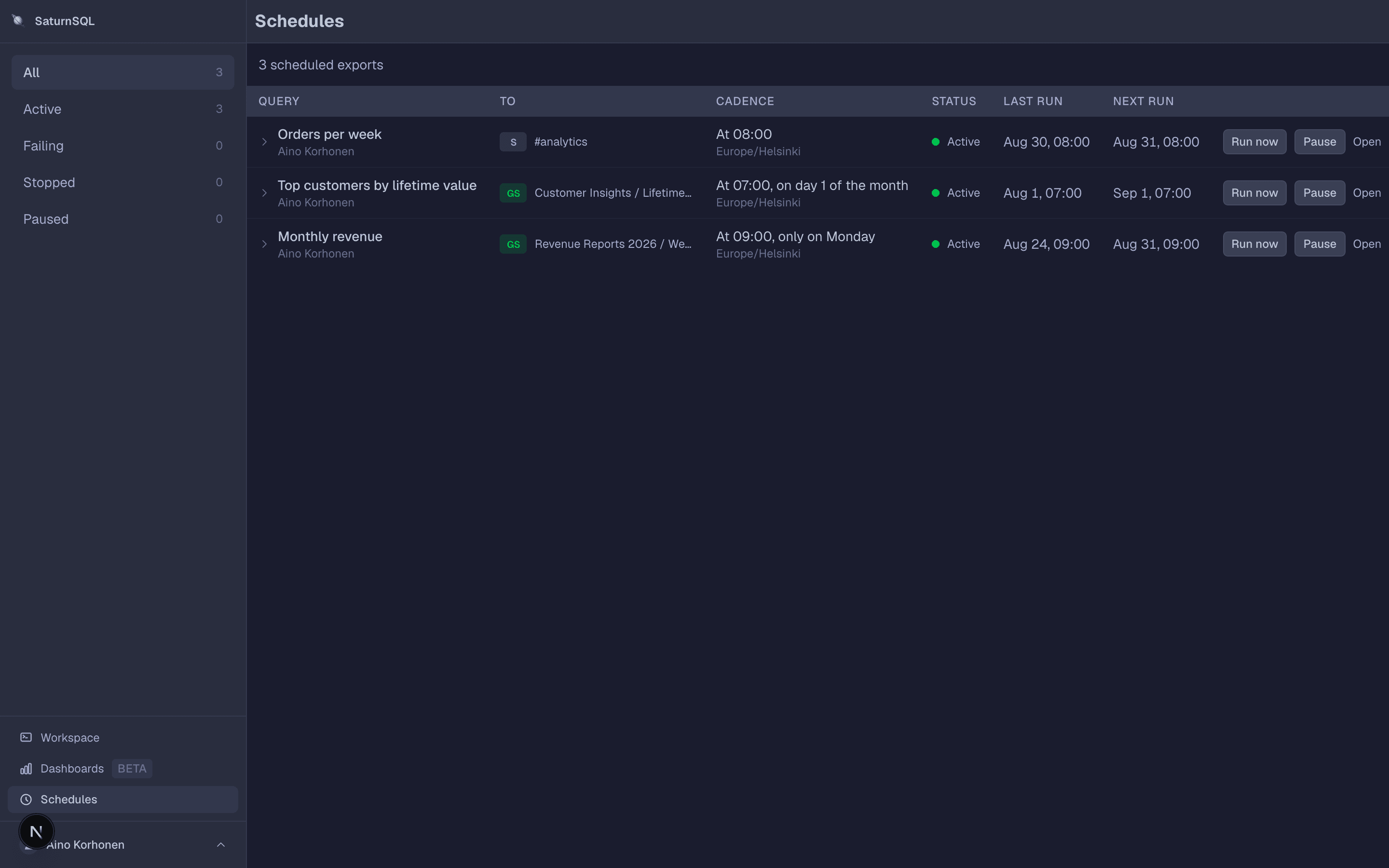
created_at >= CURRENT_DATE - INTERVAL '1 day'instead of a hardcoded date. The schedule then keeps producing correct output without manual edits. - Monitor run history — check the schedule’s history every couple of weeks. Silent failures are how stale dashboards get into leadership decks.
- Name schedules clearly — a query called "Untitled query 14" running every hour is a future headache. Use names tied to the consumer of the data.
- Keep the SQL fast — if your scheduled query takes 20 minutes, anything depending on it downstream is also delayed. Add the right indexes or pre-aggregate in your warehouse.
- Document the consumer — in the query description, note which dashboard or stakeholder relies on it. This makes future changes safer.
Troubleshooting common issues
The schedule runs at the wrong time
Check the timezone on the schedule. If you set "daily at 9am" but the timezone is UTC and you are in CET, the schedule fires at 10am or 11am local. Set the timezone explicitly to your team’s timezone.
The schedule disappeared or stopped running
A few causes: the user who created the schedule was removed from the team and the schedule was tied to their access; the Google account that owns the destination sheet revoked permissions; or the underlying database connection broke. Open the run history to see the most recent error.
Google Sheets says "permission denied"
Usually means the Google account connected to SaturnSQL no longer has edit access to that sheet, or the sheet was moved to a shared drive with different permissions. Reconnect the Google account and re-pick the destination sheet.
The query times out on schedule but works interactively
Common when the interactive run hits warm caches but the scheduled run hits cold ones. Look at the query plan, add indexes, or pre-aggregate the data into a smaller summary table that the scheduled query reads from.
Related help articles
- Export SQL results to Google Sheets
- Send SQL results to Slack
- Saving and organizing queries
- Use case: scheduled SQL queries
- What happens when a scheduled export fails →
Ready to schedule your first query?
