Connecting Your Database
SaturnSQL connects directly to your databases. Here's how to add a connection and start querying.
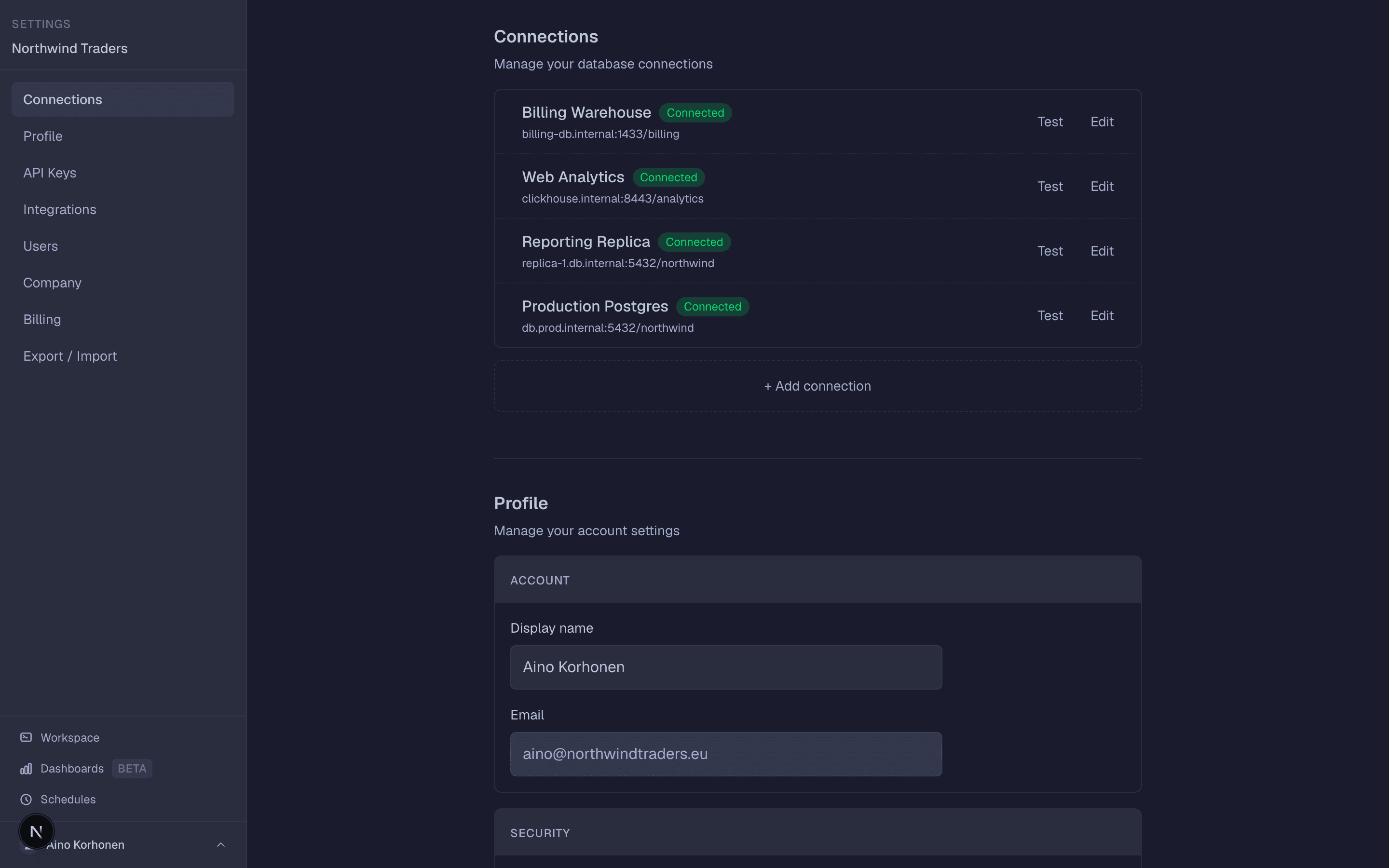
Connection details you'll need
To connect, you'll need the following information from your database provider or infrastructure team:
- Host – The database server address (e.g., db.example.com)
- Port – The database port (e.g., 5432 for PostgreSQL, 3306 for MySQL)
- Database name – The specific database to connect to
- Username – Your database user
- Password – Your database password
SSL connections
SaturnSQL supports SSL-encrypted connections. If your database requires SSL (most cloud databases do), enable the SSL option when adding your connection. This ensures all data transferred between SaturnSQL and your database is encrypted.
Databases behind a firewall or in a private network
All SaturnSQL traffic comes from a single static IP address, so for most firewalled databases one inbound rule is all it takes. If the database has no public endpoint at all, connect through an SSH bastion and it can stay private. Amazon Redshift also has a third option: the Data API, which reaches a private cluster over HTTPS with IAM credentials and needs no network changes.
Read-only connections
For analytics and reporting, the safest option is to connect with a database user that only has read access, so no query can ever modify your data. Enable Read-only mode on the connection as well. For the exact SQL to create a read-only user in PostgreSQL, MySQL, or SQL Server, see our guide to creating a read-only database user.
Testing your connection
After entering your details, click "Test Connection" to verify everything works. If the test fails, double-check your credentials and ensure your database allows connections from SaturnSQL's static IP address.
Two first-run failures worth knowing about. If you created the database just moments ago and the test fails with "Connection terminated unexpectedly", the server is most likely still provisioning — new cloud databases (Aiven, DigitalOcean and others) can take a few minutes to come up even after their hostname starts answering. Wait a little and test again. And if the test reports a certificate error, your provider probably uses its own certificate authority: paste its CA certificate into the connection's Certificates section, as described in the SSL certificates guide.
